
Scripts panel that you need ...
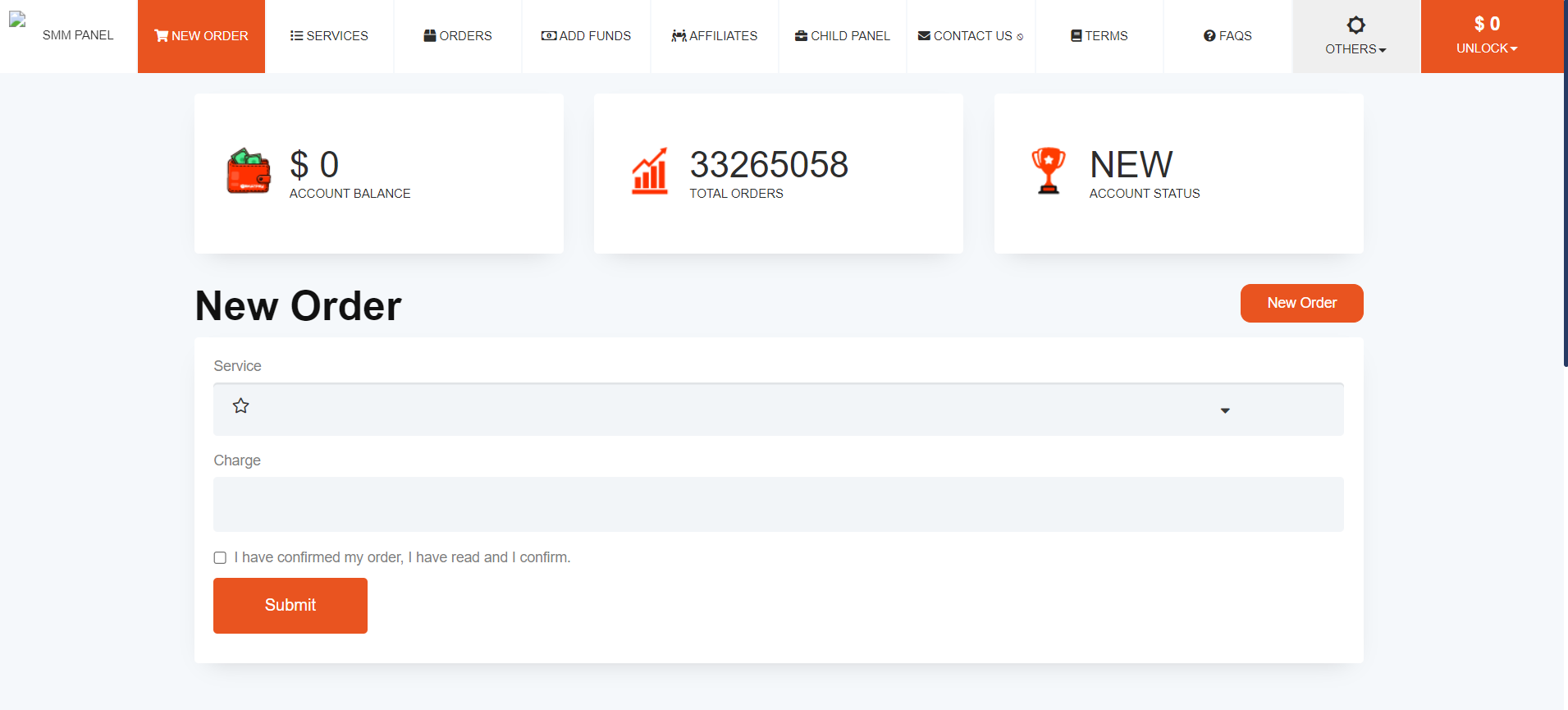
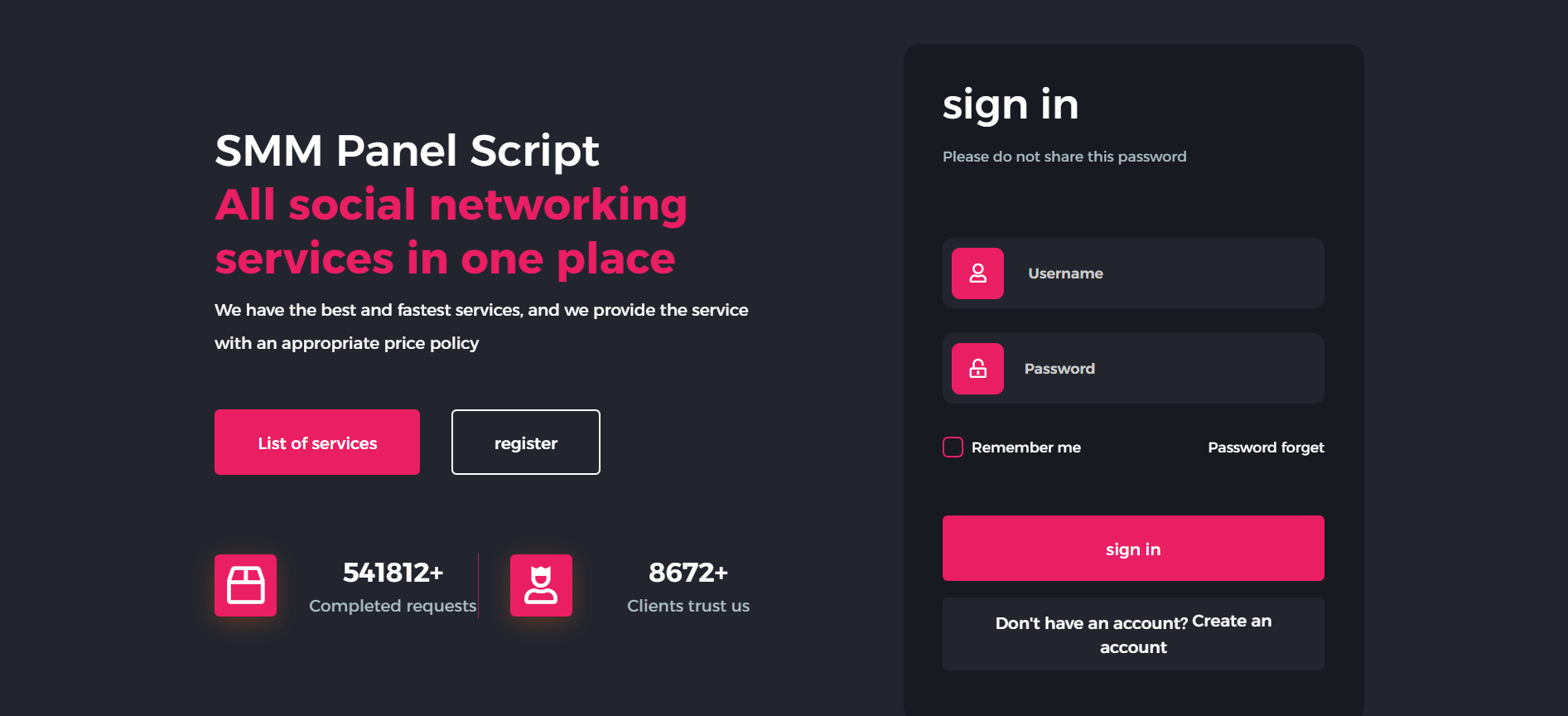
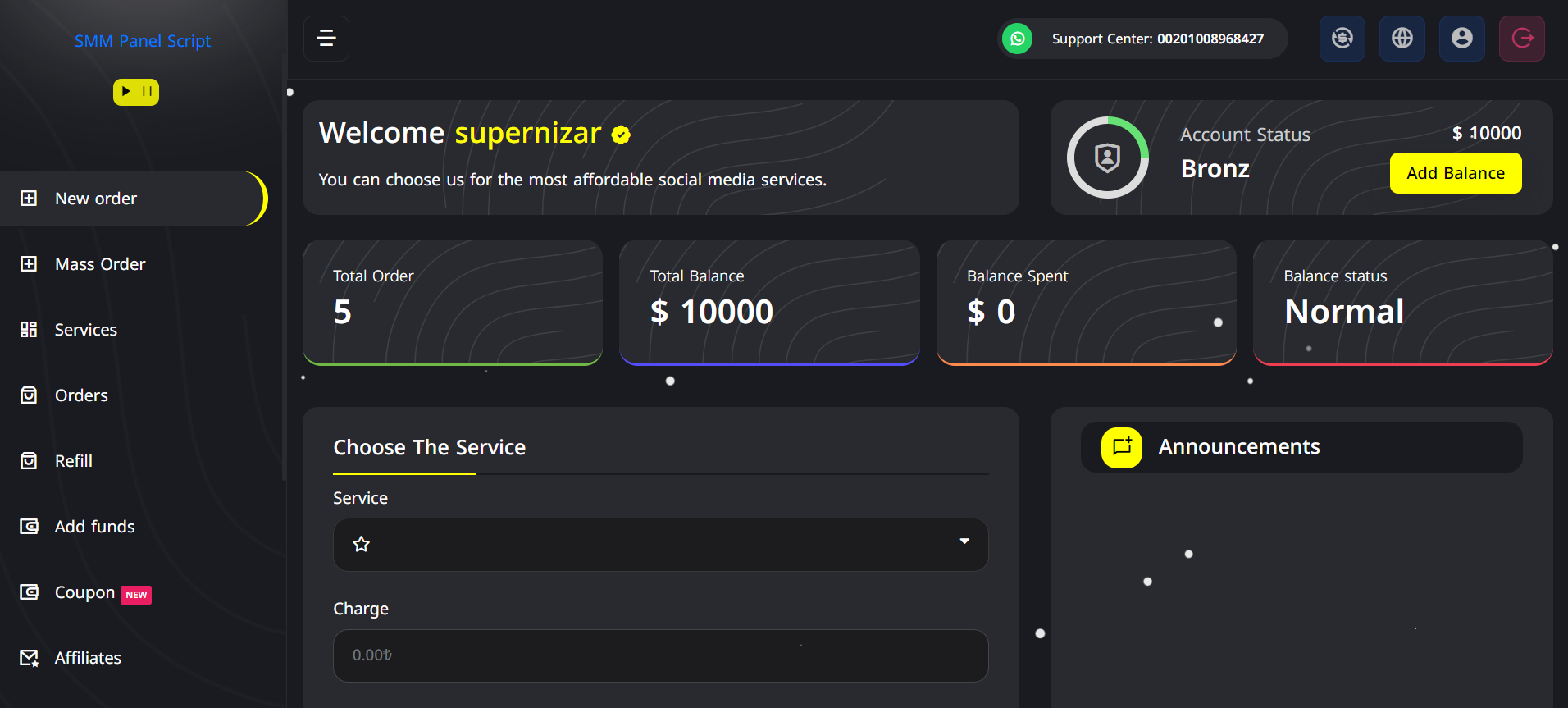
All-In-One SMM Panel Script With Multiple Themes & 50+ Payment Gateways
Installation available for only $10 if needed
- Trusted
- Experienced
- Professional













All Themes Included Watch the Preview Video
Download the Complete Secure Script No Bugs, No Errors
all scripts below include 50+ integrated payment gateways
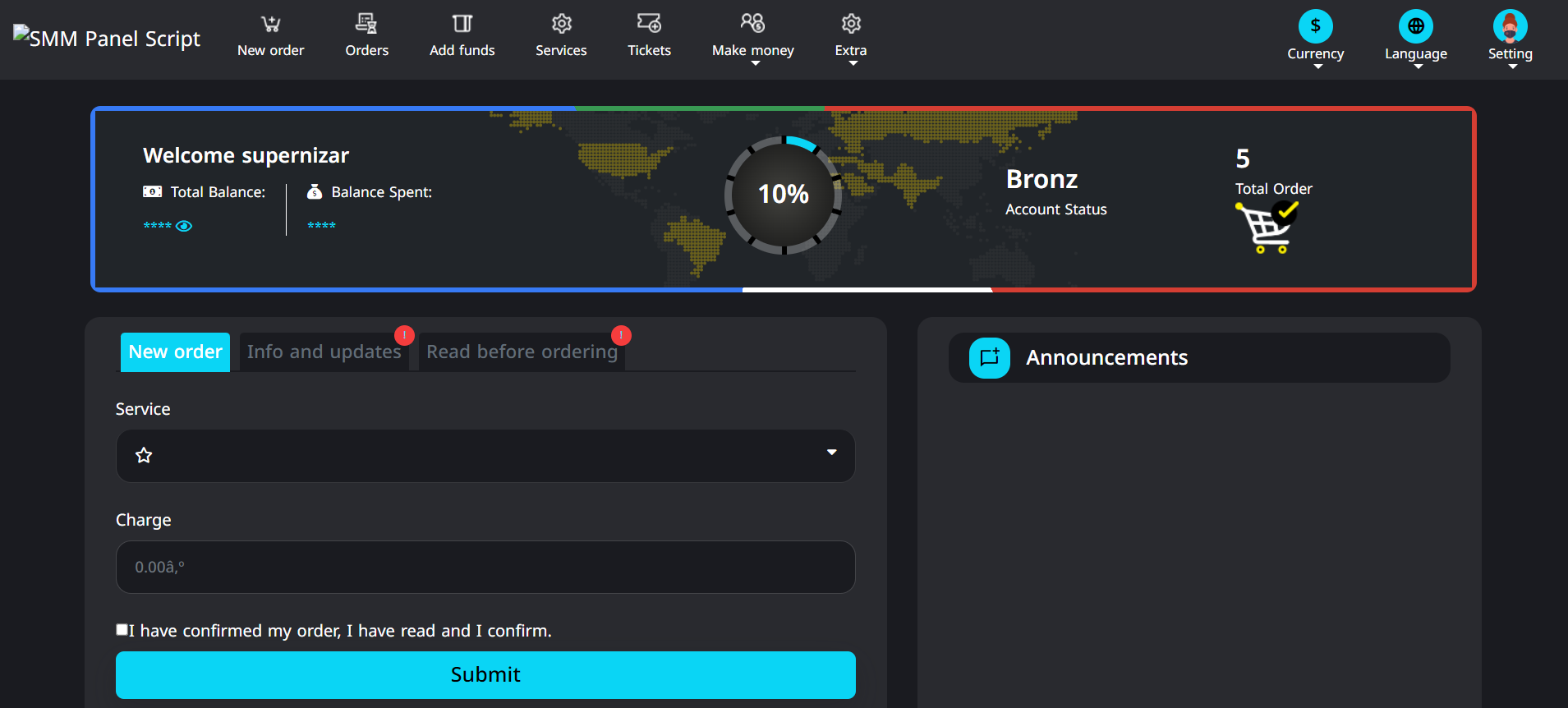
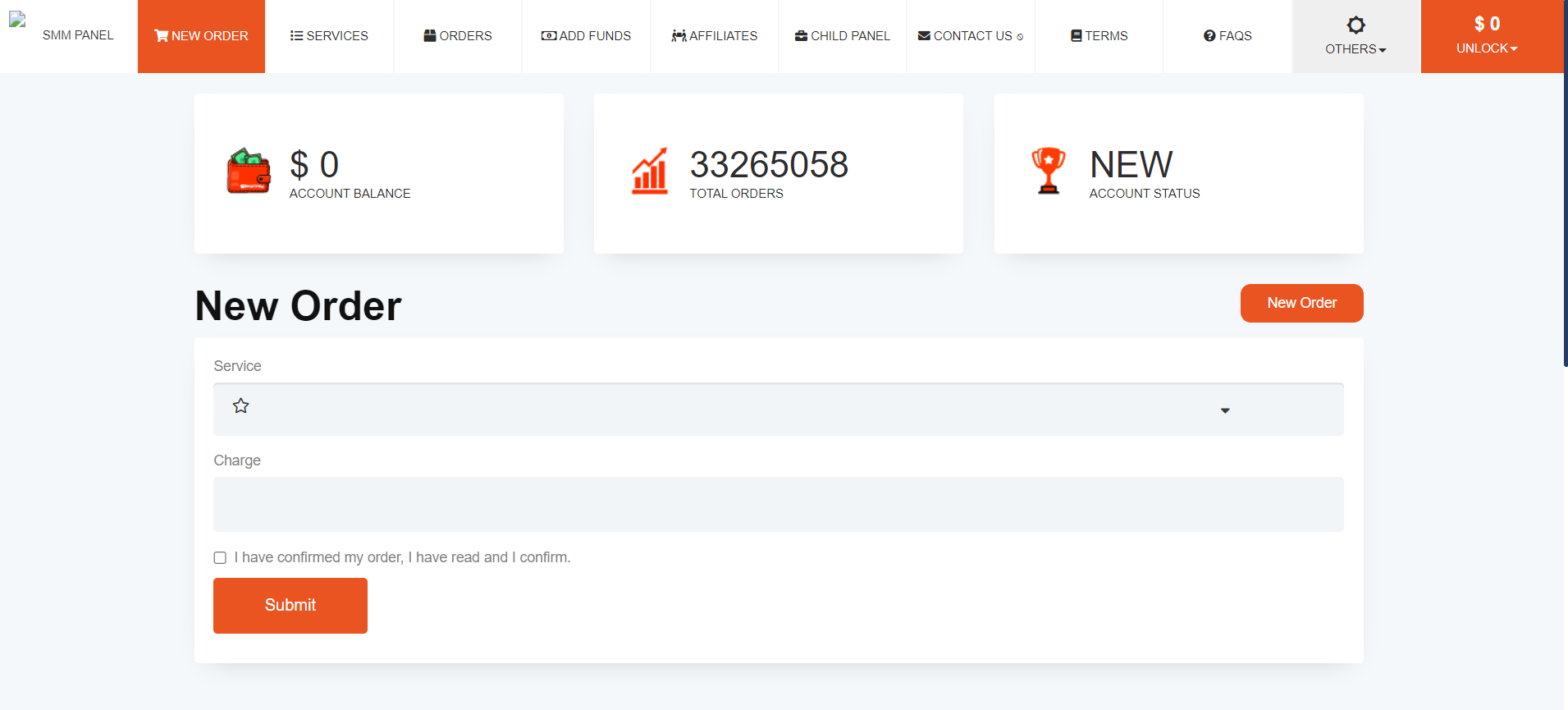
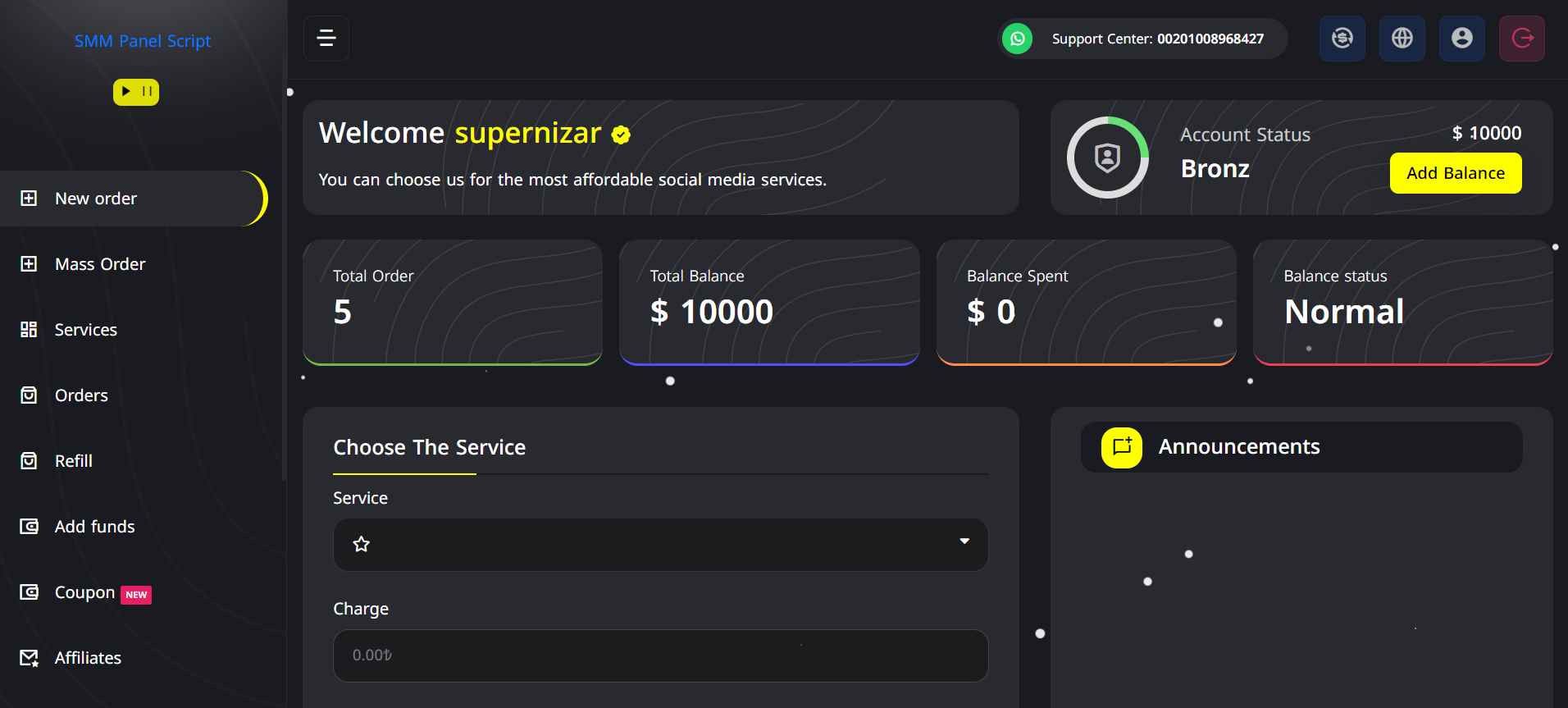
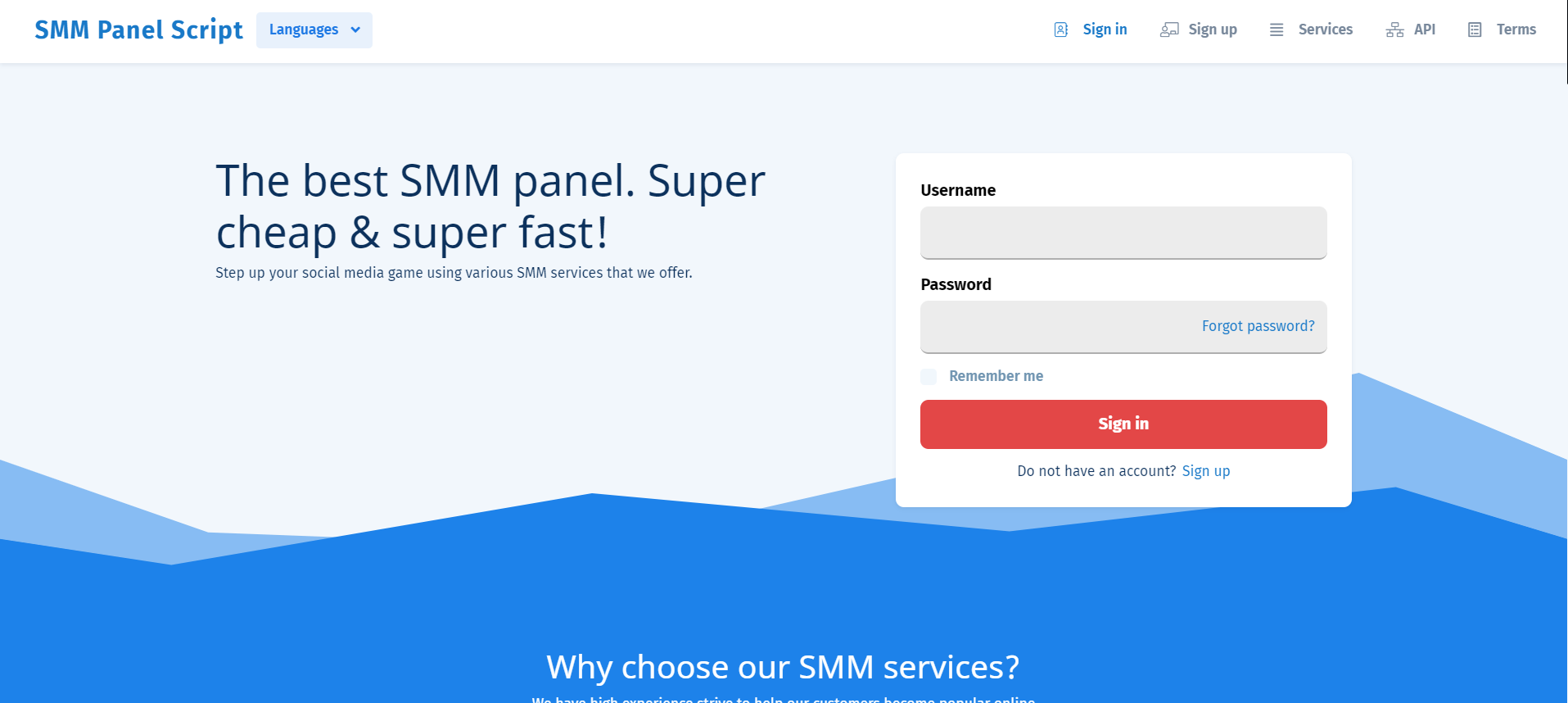
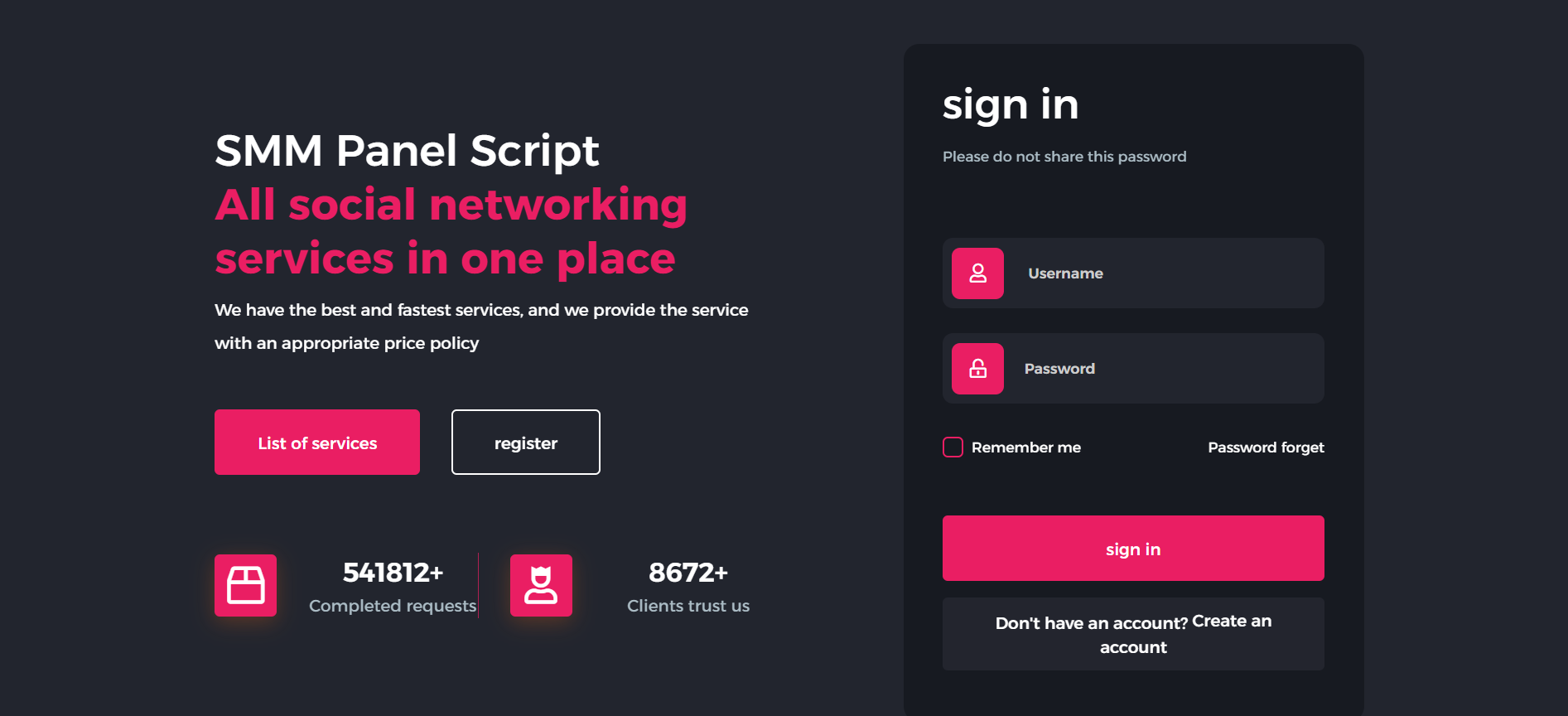
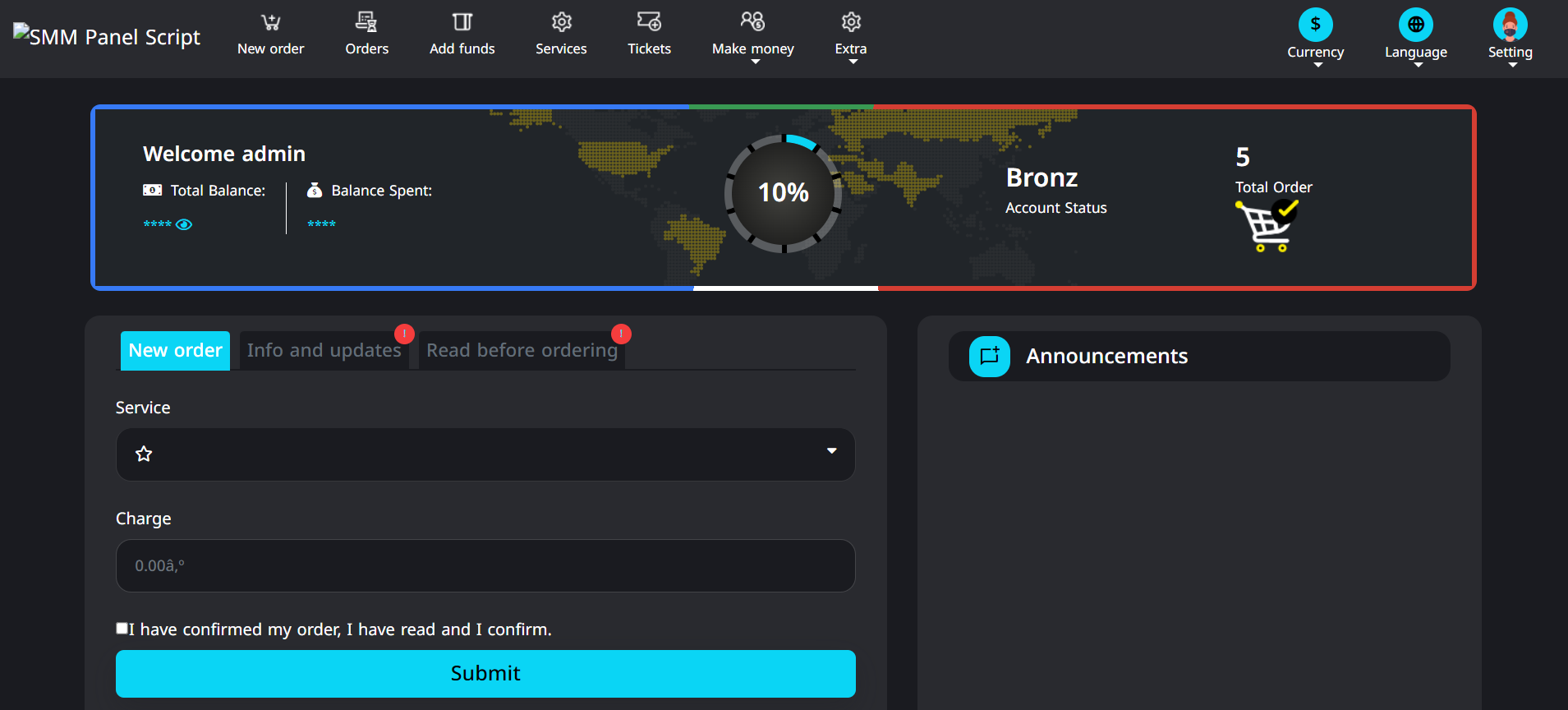
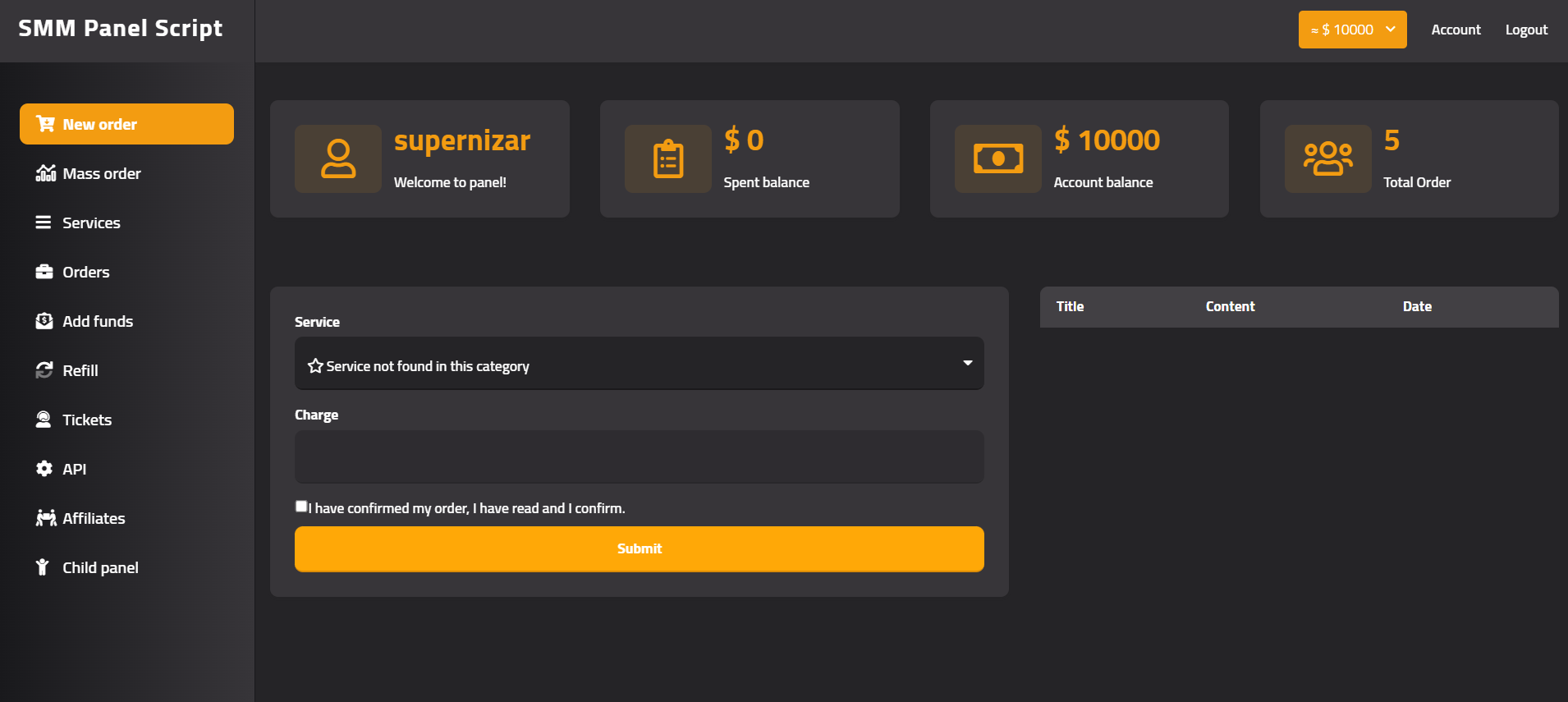
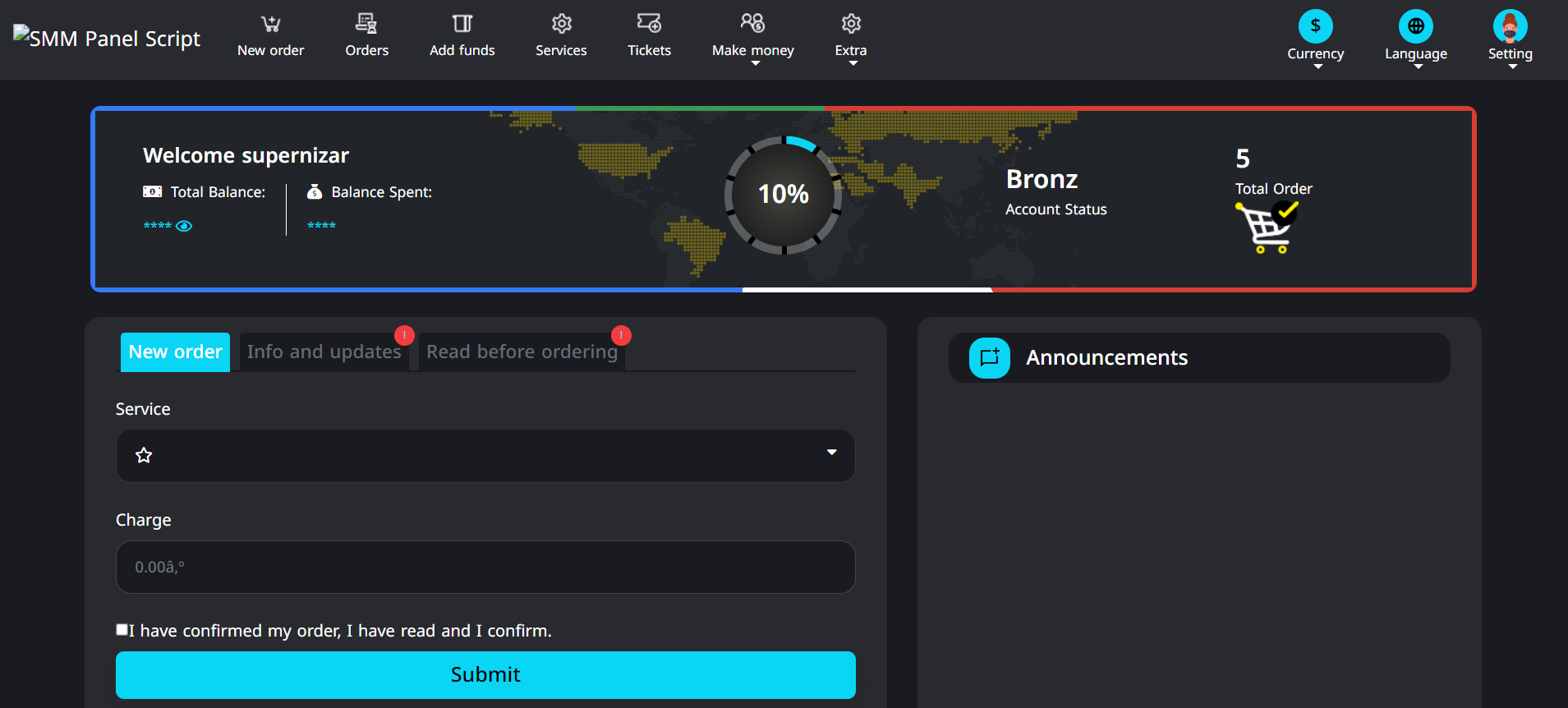
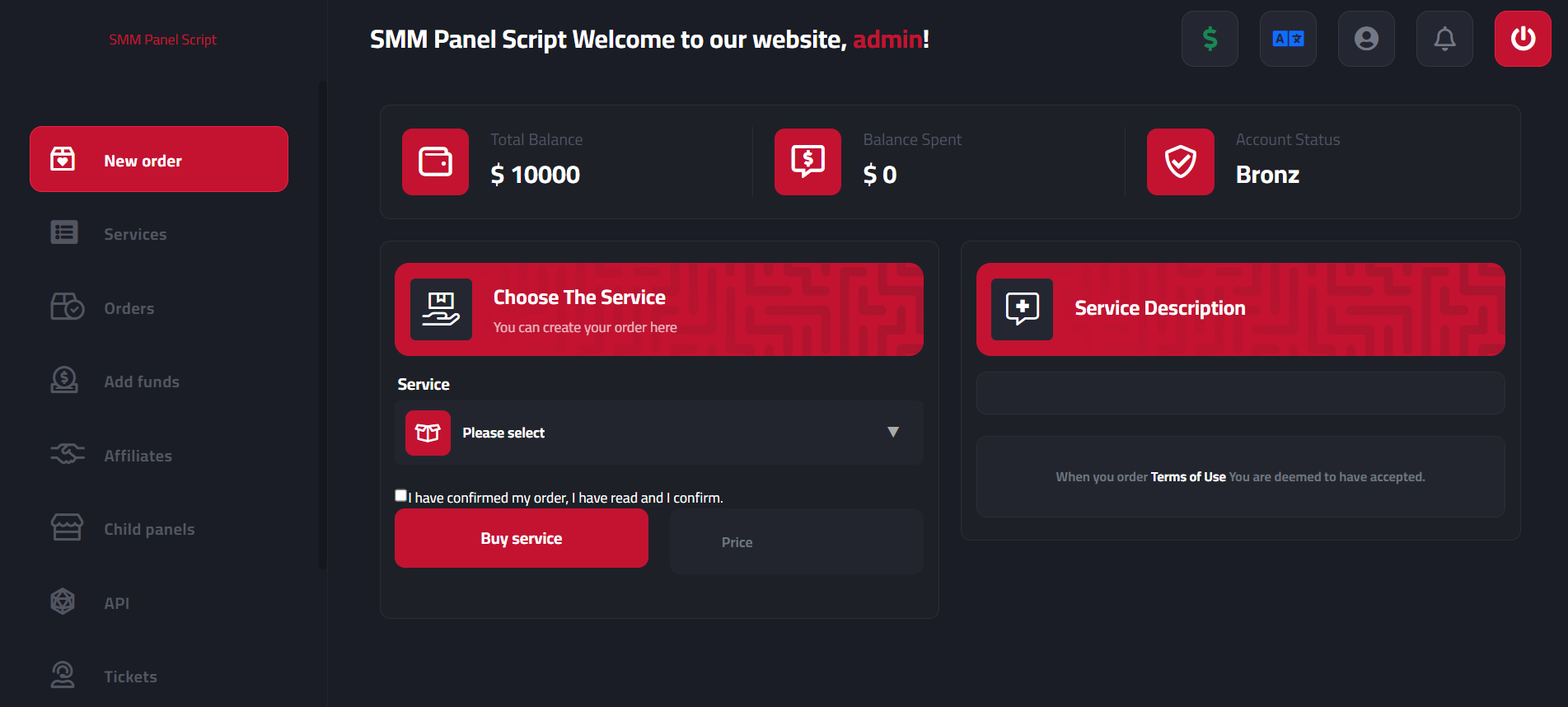
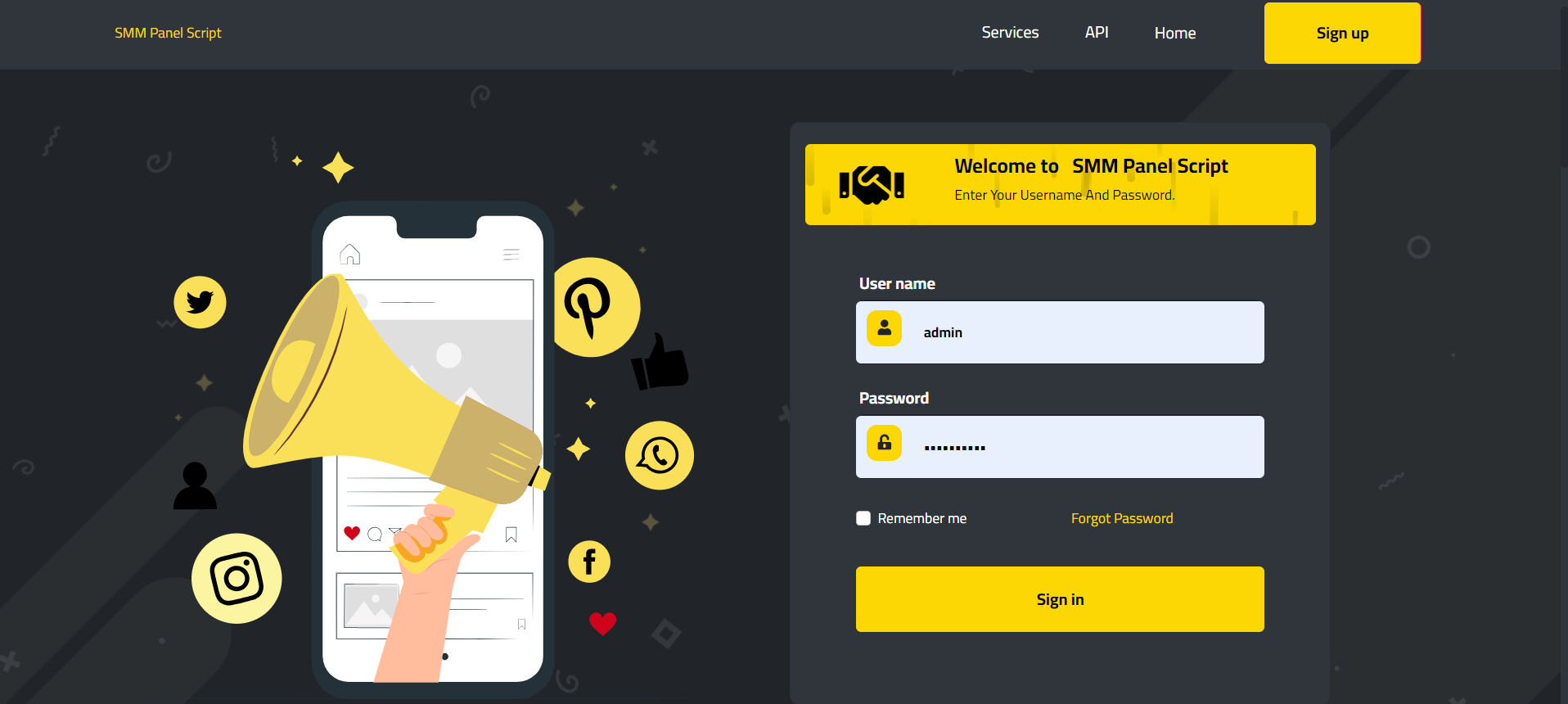
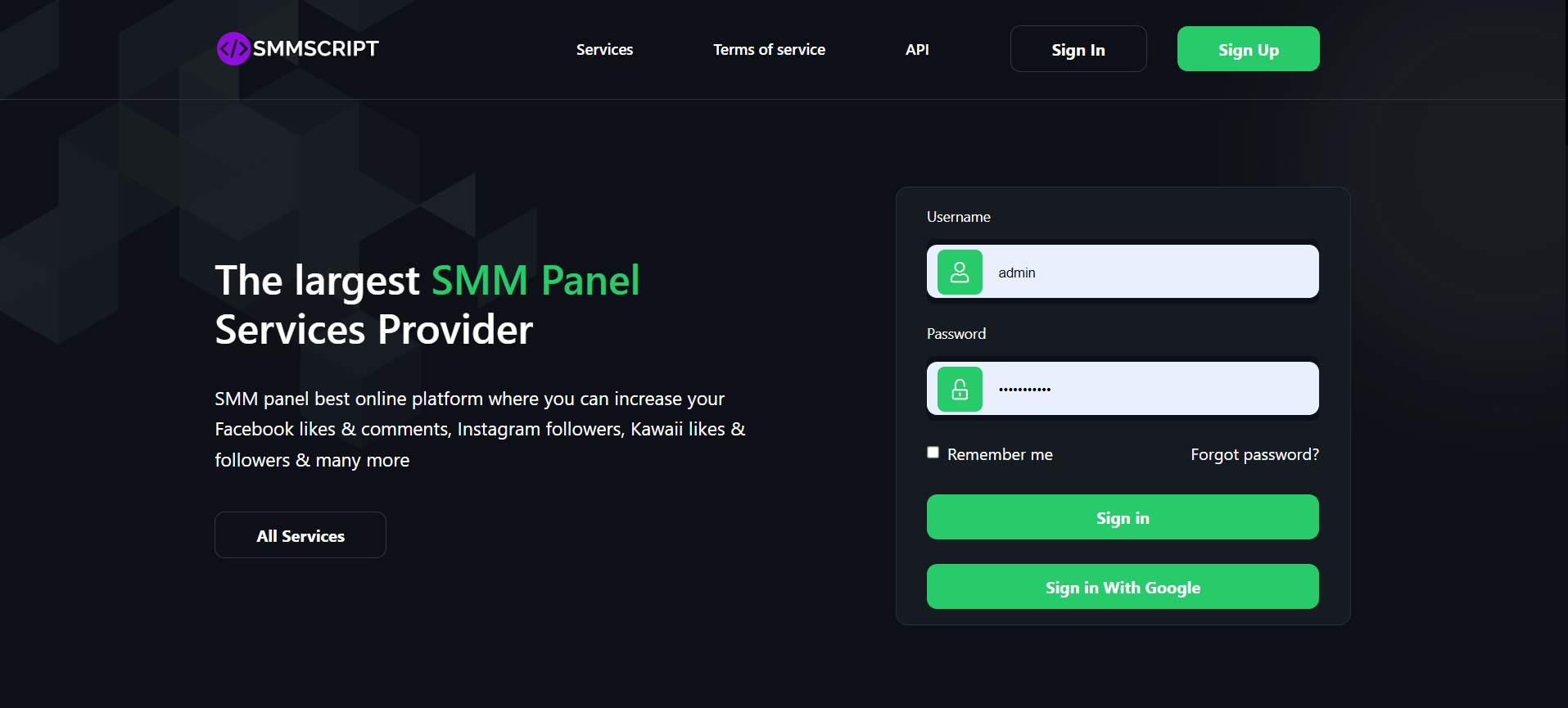
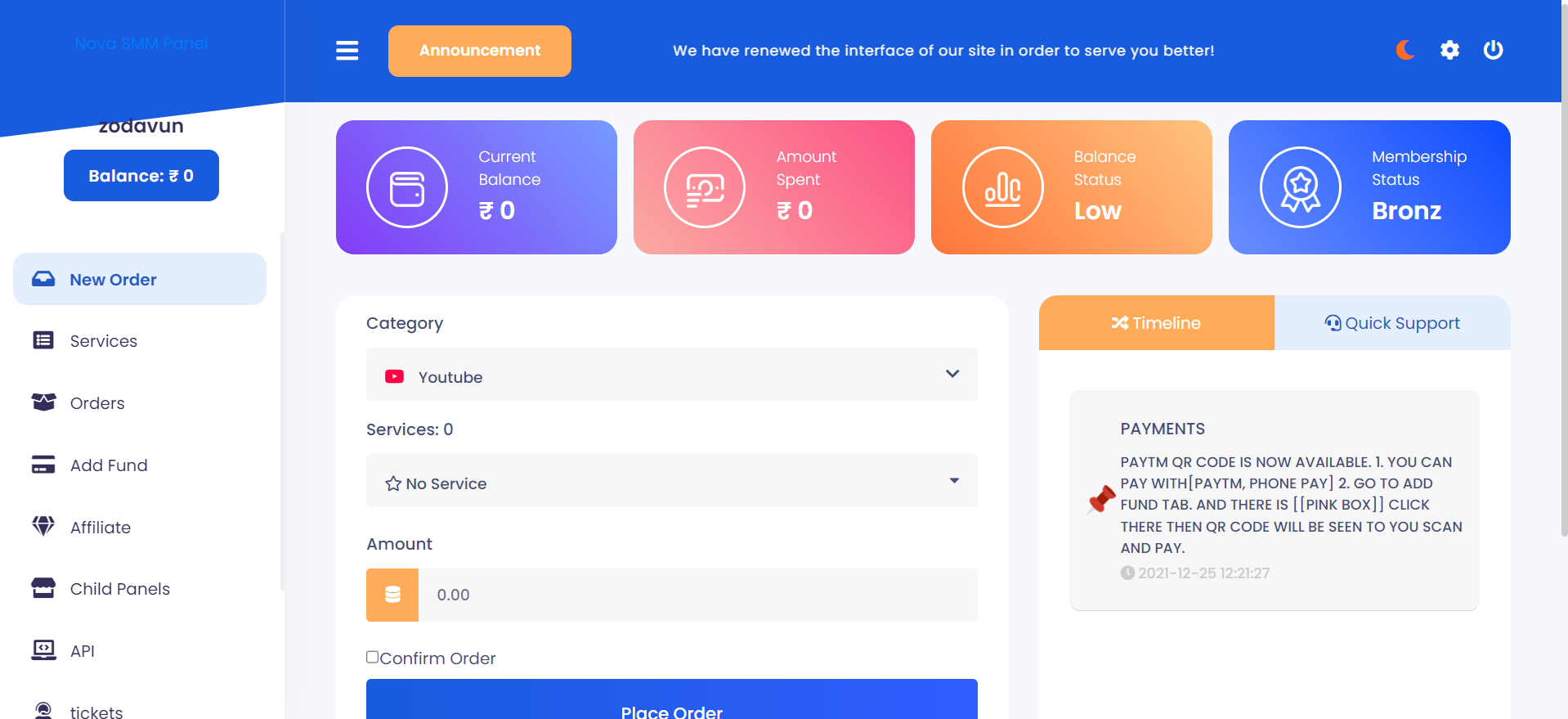

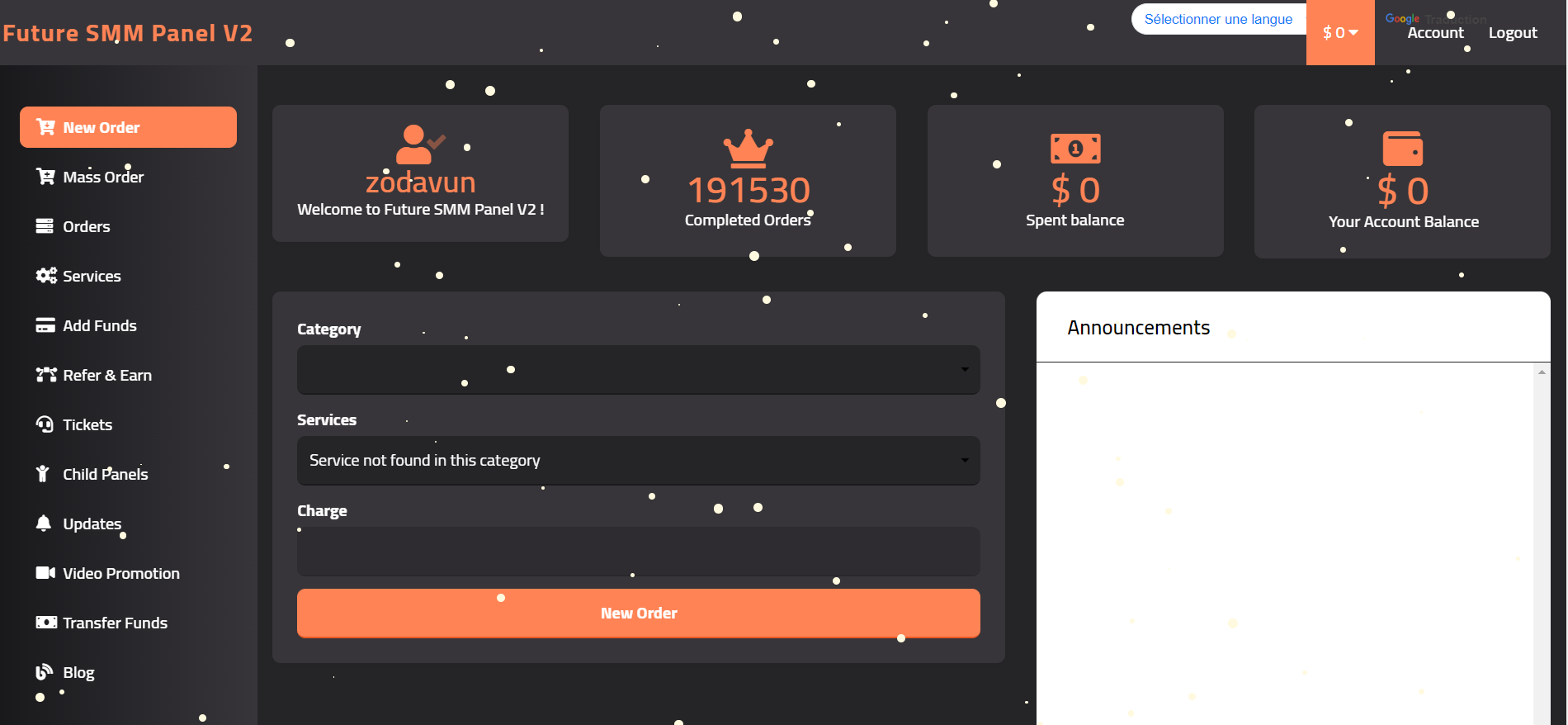
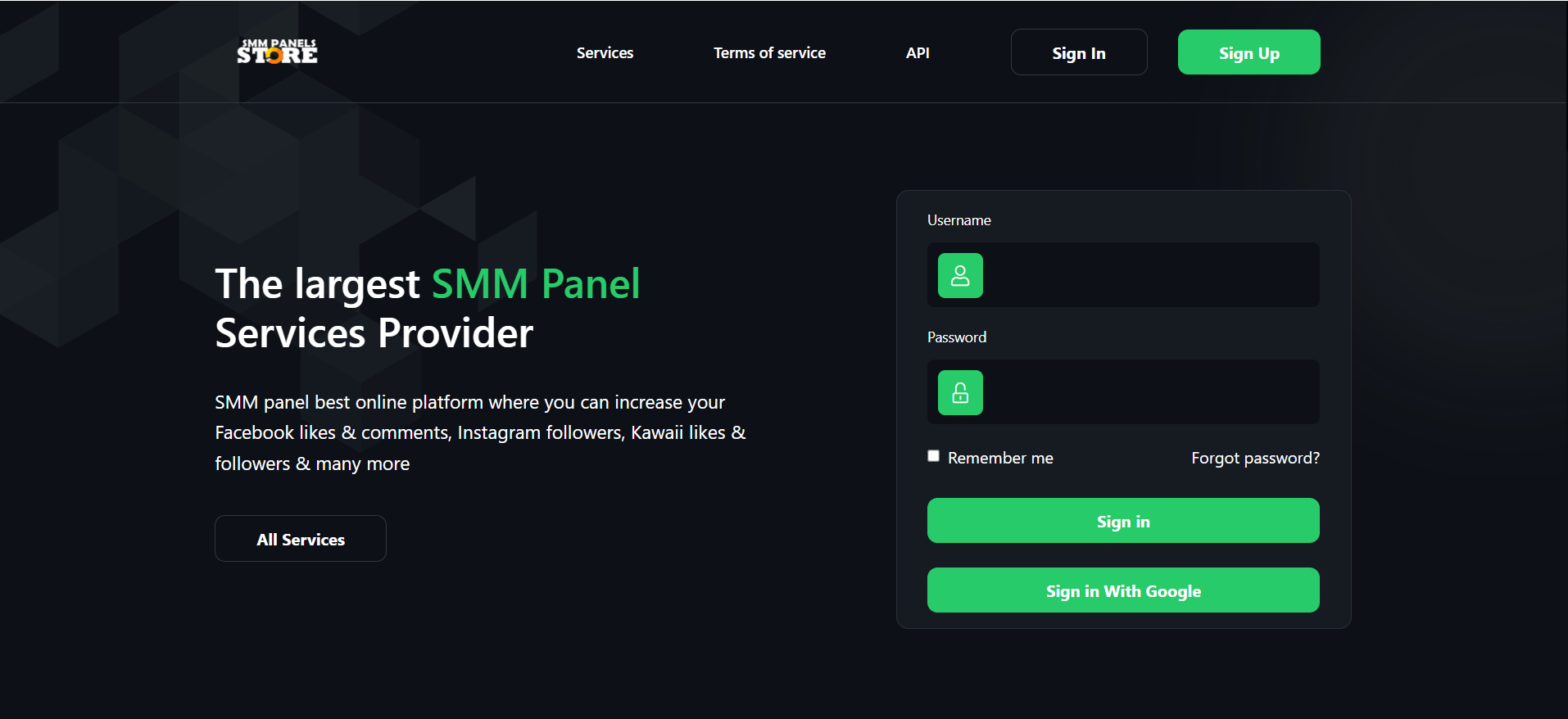
59$ 180$
- Why Choose Our Templates ...
Security
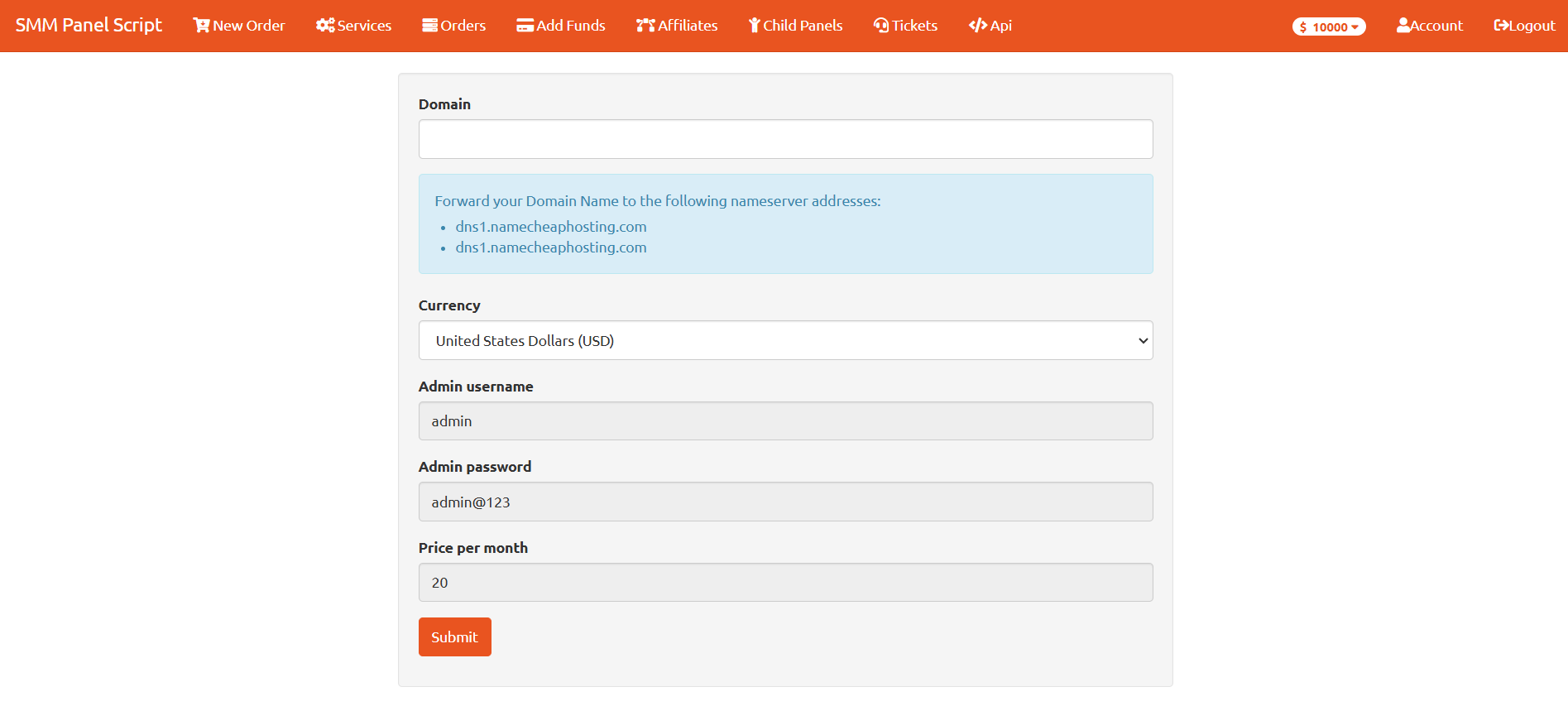
User Can Creat Child Panel
We provide users the ability to create their own SMM panel, along with a script that includes multiple themes to choose from.
Multiple Payments Gateways
Choose from a wide range of payment systems — from bank cards to exclusive manual and semi-automatic methods you won’t find anywhere else.
Script Without Any Bugs (You Are Buying From a Developper)
Buy with confidence this script is developed and maintained by a professional, not a resold or modified copy with hidden issues.
We Offer 12 Days To Support you in Whatsapp
Enjoy 12 days of WhatsApp support if you encounter any problems or bugs.
Script with Multi themes
Receive dedicated WhatsApp support for 12 days to assist with any issues or bug fixes..
High Quality
Real Services
Secure Payment
Quick Delivery
-
Complete your purchase and access files
After you purchase the Dashvio SMM panel script, log in to your account dashboard and download the script ZIP file and documentation to your computer.[web:55][web:58]
-
Choose hosting and connect your domain
Order a VPS or high‑quality shared hosting with cPanel (or similar) and SSL enabled, then point your domain or subdomain (for example, panel.yourbrand.com) to the hosting nameservers.[web:55][web:58]
-
Upload the script to your server
Log in to your hosting control panel or FTP, open the website root folder (usually
public_htmlor the domain root), and upload the ZIP file you downloaded from Dashvio.[web:55][web:58] -
Extract files and prepare folders
Use the file manager to extract the ZIP. Make sure all script files are visible and, if your host requires it, set the correct file and folder permissions for cache, storage, and uploads so the panel can run smoothly.[web:55]
-
Create and connect your database
In cPanel, create a new MySQL database, user, and password, assign the user to the database, then open phpMyAdmin and import the SQL file included with the script package.[web:55][web:58]
Open the configuration file (for example,
.envorconfig_database.php) and fill in the database name, username, password, and host, then save the changes.[web:55] -
Run the web installer and create admin
Visit your domain in the browser. If an installer is included, follow the on‑screen steps to confirm requirements, connect the database, and create your main admin login to access the dashboard.[web:55][web:58]
-
Set up cron jobs and basic settings
Add the recommended cron jobs in your hosting panel so orders, statuses, and emails are processed automatically. Then log in as admin to set your site name, logo, timezone, currency, and email settings.[web:51][web:55]
-
Configure payment gateways
In the Dashvio admin panel, open the payments section and connect your preferred gateways (for example, Stripe, PayPal, or local processors), set currencies, and define minimum and maximum deposit amounts.[web:55][web:57]
-
Add services and run a test order
Add your providers and SMM services or import them via API, then create a test user account and place a small order to confirm payment, order creation, and status updates are working correctly.[web:57][web:60]
-
Go live and start accepting customers
Once everything is tested, open registrations or add your first clients, share your panel link, and start selling your SMM services through your new Dashvio panel.[web:57][web:31]